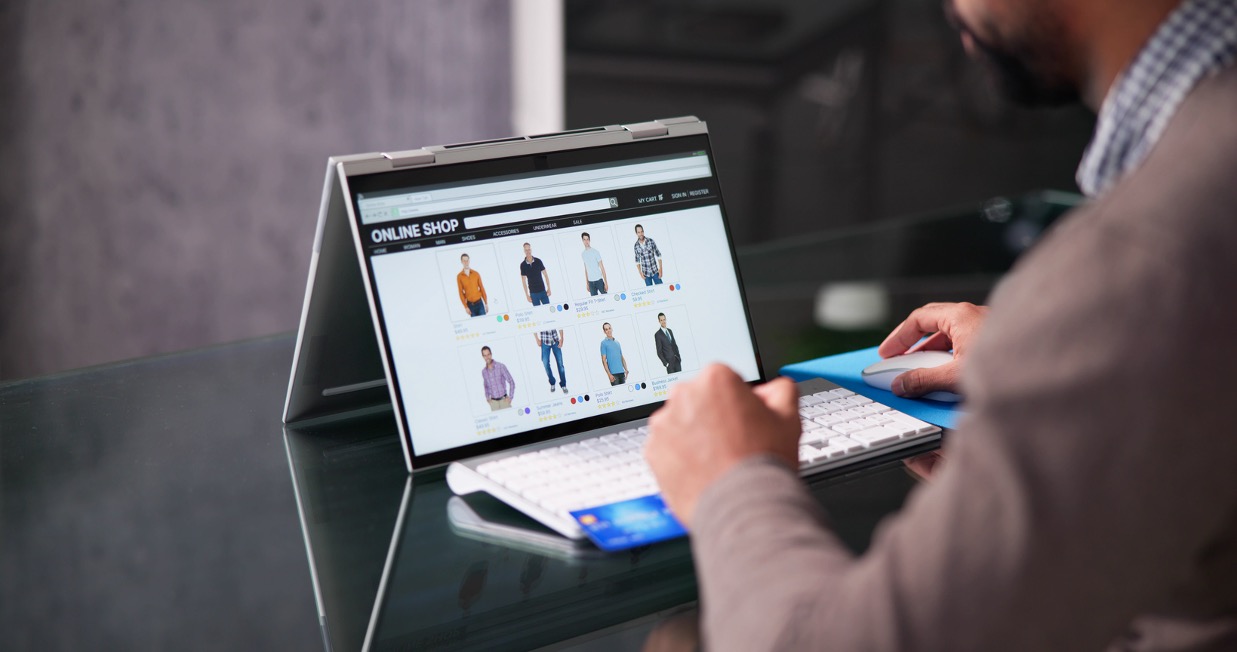
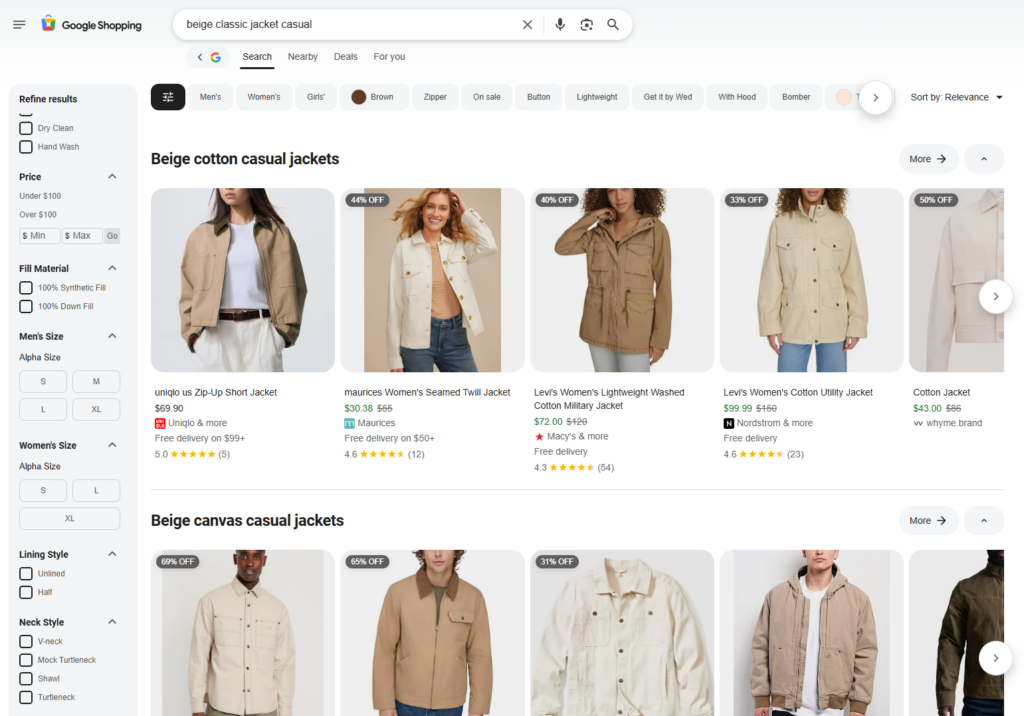
If your business website is built on shopify, and your products appear in Google Shopping searches, then there is a change coming up that you need to be aware of. This is especially the case if you don’t have someone that actively looks after your website and products on Google for you.
On the 18th of August 2026 Google is making changes to how the information about your products gets from your Shopify website to Google Merchant Centre, which allows them to show up as products in Google Shopping.
What Is Changing With Google Merchant Centre?
If you do have a Shopify website and products that show up in Google Shopping, then the feed of product data from Shopify is most likely handled by a plugin called “Google & YouTube App”.
In August, Google is changing to a new type of data feed. After this date, if you don’t make the required changes, your products won’t show up in Google Shopping anymore.
How to Check If You Need to Make This Change
How do you tell if you need to make this change?
Log into Google Merchant Centre and go to ‘Settings’ -> ‘Data sources’. If you a data source called “Content API” then you are on the old system and need to make the change.
If you see a source called “Merchant API” then you are already on the new data feed and don’t need to do anything further.
How to Fix the Issue (Step-by-Step)
Thankfully, if you are on the old data feed, the fix is a relatively simple one. You just need to uninstall and reinstall the Google & YouTube App in in Shopify.
Before you delete anything though, make sure you have all the information you’ll need when it comes time to reinstall the app.
Log in to your Shopify account, and open Google & YouTube. It should be listed under ‘Sales Channels’ in the left-hand menu. Open ‘Setting and you’ll see the details for all your Google accounts that the app is connected to. Note down all these account numbers in case you need them later (if you don’t you can always find them by logging into the google account you use to access things like Analytics, Ads, Merchant Centre etc.)
Next you need to click on ‘Sales channels’ and then ‘Sales channel setting’. From here clicking on the three dots to the right of Google & YouTube will let you select ’Uninstall’.
Once you have done that, you can open the Shopify App Store, search for ‘Google & YouTube App’ and reinstall in.
As you go through the set-up process you may find that the details for your Google Analytics, Merchant Centre and maybe Business Profile get entered automatically. If not, use the account numbers that you noted down earlier.
Checking Your Data Feed After Reinstallation
Once you have got all that done, you need to login to your Google Merchant Centre, then go to ‘Setting’ – ‘Data sources’.
Here you’ll see all the data feeds of your products. You may have had multiple data feeds to Merchant Centre, including direct feeds from your website, and feeds that Google has detected automatically, but usually only one is the ‘real’ feed with all your products included.
For all the clients that we have made this change for, the new data source has appeared in Merchant Centre automatically a little while late.
If you have reinstalled the Google & YouTube App, give it a day or two to see if the new source gets connected to Merchant Centre automatically. If it does appear, check that all your products and there, and then you can relax.
If the new source doesn’t appear automatically, you can add a new product source manually.
Important Things to Be Aware of After Switching
There are a few things to be aware of when you switch to the new data feed.
The main one is that the new feed may generate different feed identifiers, labels and product IDs from the previous Content API feed, which can affect historical reporting and campaign associations.
This can disrupt product-level reporting and may require Shopping or Performance Max Google Ads campaigns to reconnect to the new feed. Depending on how your campaigns are structured, Shopping and Performance Max campaigns may experience a short learning period after the migration.
While you can use multifeeds to get round this by assigning your own product codes that match the ones previously used, this is only worth doing if you really need data continuity.
Changes to Markets and Country Settings
The other thing to consider is a change to the way Google handles countries or markets that you sell into. Previously you might have sold into multiple countries but only had Merchant Centre Products set up for your main market. The new data feed pulls product information for all the countries you have set up in Shopify and sets up products on Google for all those countries.
Shopify Markets Configuration Matters
Because the new feed relies heavily on Shopify Markets settings, make sure shipping, pricing and availability are correctly configured for every country you target. Incomplete settings can lead to product disapprovals or policy issues.
Check Feed Rules and Campaign Settings
Finally, if you use feed rules in Merchant Centre to modify titles, descriptions, product types etc., check that those rules are still working after you switch to the new data feed. In some cases, they need editing to match the new data source. Likewise, if you use feed labels for Ad targeting in your Shopping or Performance Max campaigns, you may need to update these too.
Need Help?
As always, if you need any help with these changes to Shopify and Google Merchant Centre, just contact here at Synthesis marketing.